Importing and Exporting Templates
You can import and export appliance templates. When exporting, an archive is created of the appliance template. This archive includes a meta-data file describing the appliance template (based on the hammr specification) as well as any bundled software that was initially uploaded as part of the template creation.
Likewise, an archive can be imported to the UForge platform, creating a new appliance template in your Appliance Library under the Imported Appliances section.
Exporting
To export an existing appliance:
- Go to your
Appliance Library- Click on the
exporticon on the right hand side of the appliance template in question to export
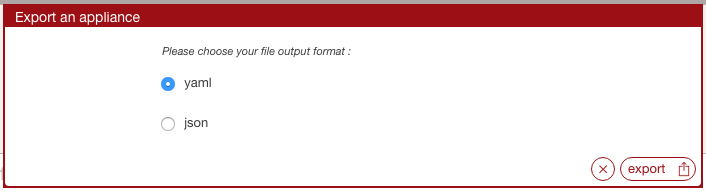
- A pop-up will appear, allowing you to select the format you would like (yaml or json).
- Click
export. This will start the export process.
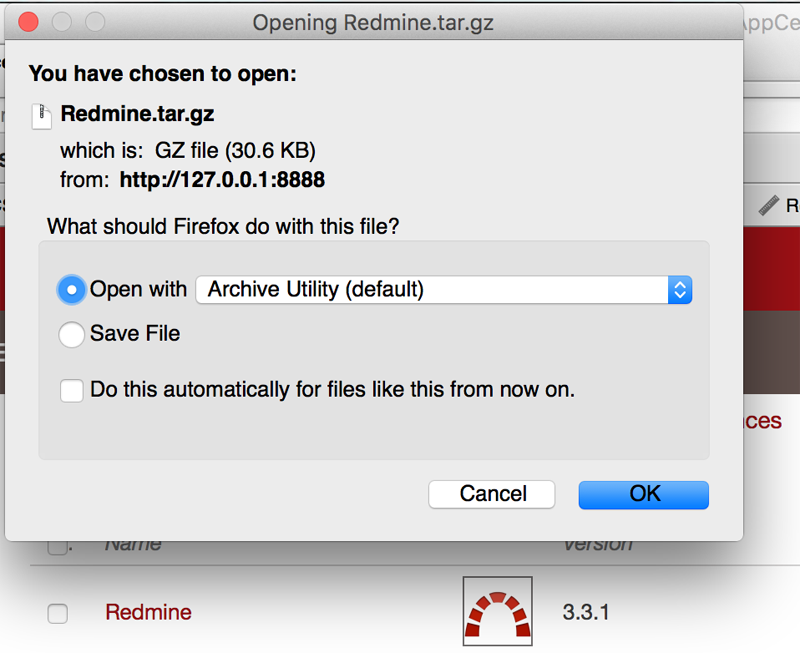
- Once the export is complete, you will be prompted to download the archive file
The equivalent export feature is available when editing an appliance template.
Importing
To import an archive:
- Go to your
Appliance Library- Click on the
importbutton at the top right hand side of the view
- This opens up a file browser, choose the archive to upload
- This will start the import process.

- Once the import is complete, a new appliance template can be found in the
Imported Appliancessub-section of yourAppliance Library.
Note
If you have already an appliance with the same name, version and OS type then this import will fail due to an appliance template conflict. In such situations, you will require to delete the original appliance template.